API Keys
API keys authenticate your requests to the CTWise API. This guide covers how to generate, manage, and secure your API keys.
Overview
Each API key:
- Is unique to your account
- Should be kept secret
- Can be revoked at any time
- Starts with the prefix
ctw_
Generating an API Key
Step 1: Navigate to API Keys
- Log in to your dashboard
- Select CTWise from the product selector
- Click API Keys in the navigation menu
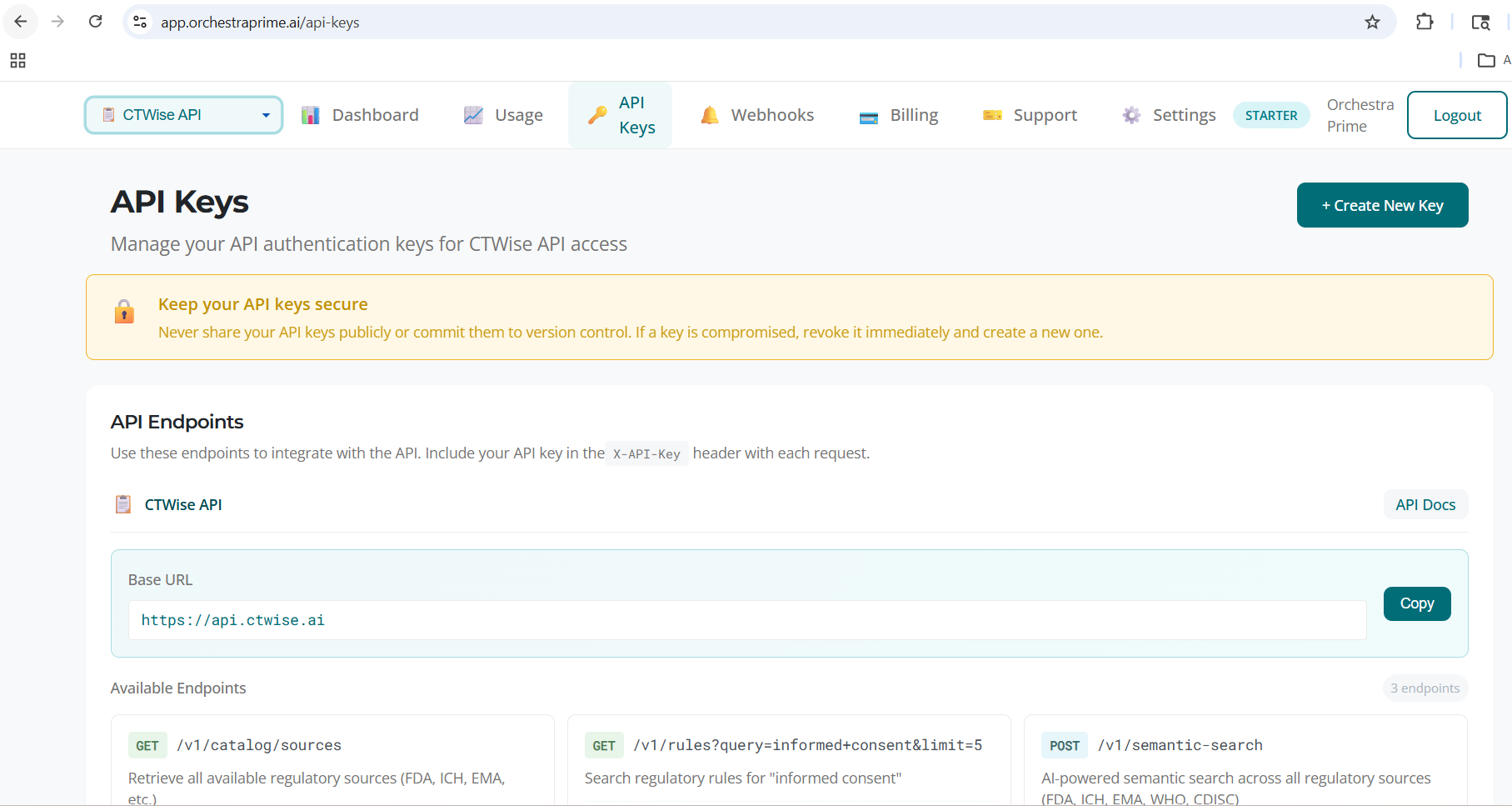
Step 2: Create New Key
- Click Generate New Key
- Enter a description for the key (e.g., "Production Server", "Development")
- Click Generate
Step 3: Copy Your Key
Important: Your API key is only shown once. Copy it immediately and store it securely.
- Click the Copy button next to the key
- Store the key in a secure location (e.g., environment variables, secrets manager)
- Click Done
Example API key format:
ctw_a5f1b866f29b2b74f6b61ccc777b59a3
Using Your API Key
Include your API key in the X-Api-Key header with every request:
curl -X POST "https://api.ctwise.ai/v1/search" \
  -H "X-Api-Key: ctw_YOUR_API_KEY" \
  -H "Content-Type: application/json" \
  -d '{"query": "FDA clinical trial requirements"}'
Python Example
import requests

headers = {
    "X-Api-Key": "ctw_YOUR_API_KEY",
    "Content-Type": "application/json"
}

response = requests.post(
    "https://api.ctwise.ai/v1/search",
    headers=headers,
    json={"query": "FDA clinical trial requirements"}
)
JavaScript Example
const response = await fetch("https://api.ctwise.ai/v1/search", {
  method: "POST",
  headers: {
    "X-Api-Key": "ctw_YOUR_API_KEY",
    "Content-Type": "application/json"
  },
  body: JSON.stringify({ query: "FDA clinical trial requirements" })
});
Viewing Your Keys
The API Keys page shows all your active keys:
| Column | Description |
|---|---|
| Key ID | First 8 characters of the key (for identification) |
| Description | Your description for the key |
| Created | When the key was generated |
| Last Used | Last time the key was used (if tracked) |
| Actions | Revoke button |
Note: The full key is never shown after creation for security reasons.
Revoking an API Key
To revoke a key that's no longer needed or may have been compromised:
- Navigate to API Keys
- Find the key you want to revoke
- Click the Revoke button
- Confirm by clicking Yes, Revoke
Warning: Revoking a key is immediate and permanent. Any applications using that key will stop working.
Key Limits
| Tier | Max Active Keys |
|---|---|
| Free | 2 |
| Starter | 5 |
| Pro | 10 |
| Enterprise | 25 |
Security Best Practices
Do
- Store keys in environment variables or a secrets manager
- Use different keys for development and production
- Rotate keys periodically (every 90 days recommended)
- Revoke unused keys immediately
Don't
- Commit keys to version control (Git, etc.)
- Share keys in plain text (email, chat, etc.)
- Embed keys in client-side code (JavaScript in browsers)
- Use the same key across multiple environments
Environment Variables Example
# Set the environment variable
export CTWISE_API_KEY="ctw_YOUR_API_KEY"

# Use in your application
import os
api_key = os.environ.get("CTWISE_API_KEY")
Troubleshooting
"Invalid API Key" Error
If you receive a 401 error with "Invalid API key":
- Verify the key is copied correctly (no extra spaces)
- Check the key hasn't been revoked
- Ensure you're using the correct header name (
X-Api-Key)
"Rate Limit Exceeded" Error
If you receive a 429 error:
- Check your tier's rate limit
- Implement exponential backoff in your code
- Consider upgrading your tier if you need higher limits
Key Not Working After Generation
- Wait a few seconds - keys activate immediately but propagation may take a moment
- Verify you copied the full key
- Try generating a new key if the issue persists